Use this guide to configure the Mabyduck OpenID Connect integration in Okta.
This guide only applies to organizations with Okta SSO enabled.
Organizations without Okta SSO enabled can continue using the normal Mabyduck sign-in methods available to their users, such as email and connected identity providers.
To enabled Okta for your Mabyduck organization, contact support@mabyduck.com to start.
Please include the slug you'd like to have for your organization login URL, for example acme if you want https://app.mabyduck.com/org/acme/ to be your organization login URL.
Before you configure the integration, confirm that you have:
- an Okta admin account.
- a Mabyduck organization owner or admin account.
- Okta SSO enabled for your Mabyduck organization.
- your Mabyduck organization login slug, for example
acme. - your Mabyduck Okta issuer URL.
- your Mabyduck domain, which defaults to
app.mabyduck.comunless Mabyduck has configured you a custom domain.
Use the Okta organization issuer URL for this integration:
https://{your-company}.okta.com
Do not use:
- the Okta admin URL.
- a custom authorization server URL, such as
/oauth2/default. - a dev, staging, localhost, preview, or internal test URL.
Mabyduck supports:
- SP-initiated SSO: users start from Mabyduck and are redirected to Okta.
- IdP-initiated SSO: users start from the Mabyduck tile in Okta.
- Just-in-Time user creation: Mabyduck can create a user after a valid Okta sign-in.
- Universal Logout: Okta can end active Mabyduck sessions through global token revocation.
Mabyduck does not support:
- SCIM provisioning.
- refresh tokens.
- custom OIDC scopes.
- SP-initiated Single Logout.
- OIDC Post Logout URI.
For more information about Universal Logout, see Universal Logout.
- Log in to your Okta Admin Console.
- Go to
Applications->Applications->Browse App Catalog. - Search for
Mabyduckin the catalog. - Click on Add integration.
- Enter the organization slug and Mabyduck domain above.
- Assign the app to the users or groups who should sign in to Mabyduck.
Users cannot complete Okta sign-in until they are assigned to the Mabyduck app.
You may see this URLs within your apps logs, the URLs are expected to match exactly. They are useful references if you are debugging the integration.
Replace {org-slug} with your Mabyduck organization login slug.
| Okta field | Value |
|---|---|
| Sign-in redirect URIs | https://app.mabyduck.com/oauth2/okta/{org-slug}/auth/ and https://app.mabyduck.com/oauth2/okta/{org-slug}/connect/ |
| Initiate login URI | https://app.mabyduck.com/org/{org-slug}/ |
| Sign-in URI | https://app.mabyduck.com/org/{org-slug}/ |
| Global token revocation endpoint | https://app.mabyduck.com/oauth2/okta/{org-slug}/revoke/ |
If you enable Universal Logout in Okta, configure the Mabyduck app integration:
Log in to your Okta Admin Console.
Go to
Applications->Applications.Select the Mabyduck app integration.
Open the
Authenticationtab.In the
Logoutsection, clickEdit.Select
Okta system or admin initiates logout.Set the global token revocation endpoint to:
https://app.mabyduck.com/oauth2/okta/{org-slug}/revoke/Use:
- authentication method:
SIGNED_JWT - subject format:
Issuer and Subject identifier
- authentication method:
Click
Save.
Replace {org-slug} with your Mabyduck organization login slug.
See Universal Logout for the full setup guide.
Users can start sign-in from the Mabyduck tile in their Okta dashboard.
- Open the Okta End-User Dashboard.
- Select the Mabyduck tile.
- Confirm you are redirected to Mabyduck and signed in.
Users can start sign-in from Mabyduck.
- Open
https://app.mabyduck.com/org/{org-slug}/. - Enter your email address.
- Select
Continue with Okta. - Complete Okta sign-in.
- Confirm you are returned to Mabyduck.
Returning Okta-managed users can also start from the standard Mabyduck login page:
- Open
https://app.mabyduck.com/login/. - Enter your email address.
- Confirm Mabyduck redirects you to
https://app.mabyduck.com/org/{org-slug}/. - Complete Okta sign-in.
- Confirm you are returned to Mabyduck.
SP-initiated sign-in requires an existing Mabyduck user who belongs to your Okta-enabled organization.
To configure Okta SSO in Mabyduck, you must be an organization owner or admin.
Follow these steps:
On the home page, make sure you're currently on a Organization, then click on the organization icon in the top right corner.
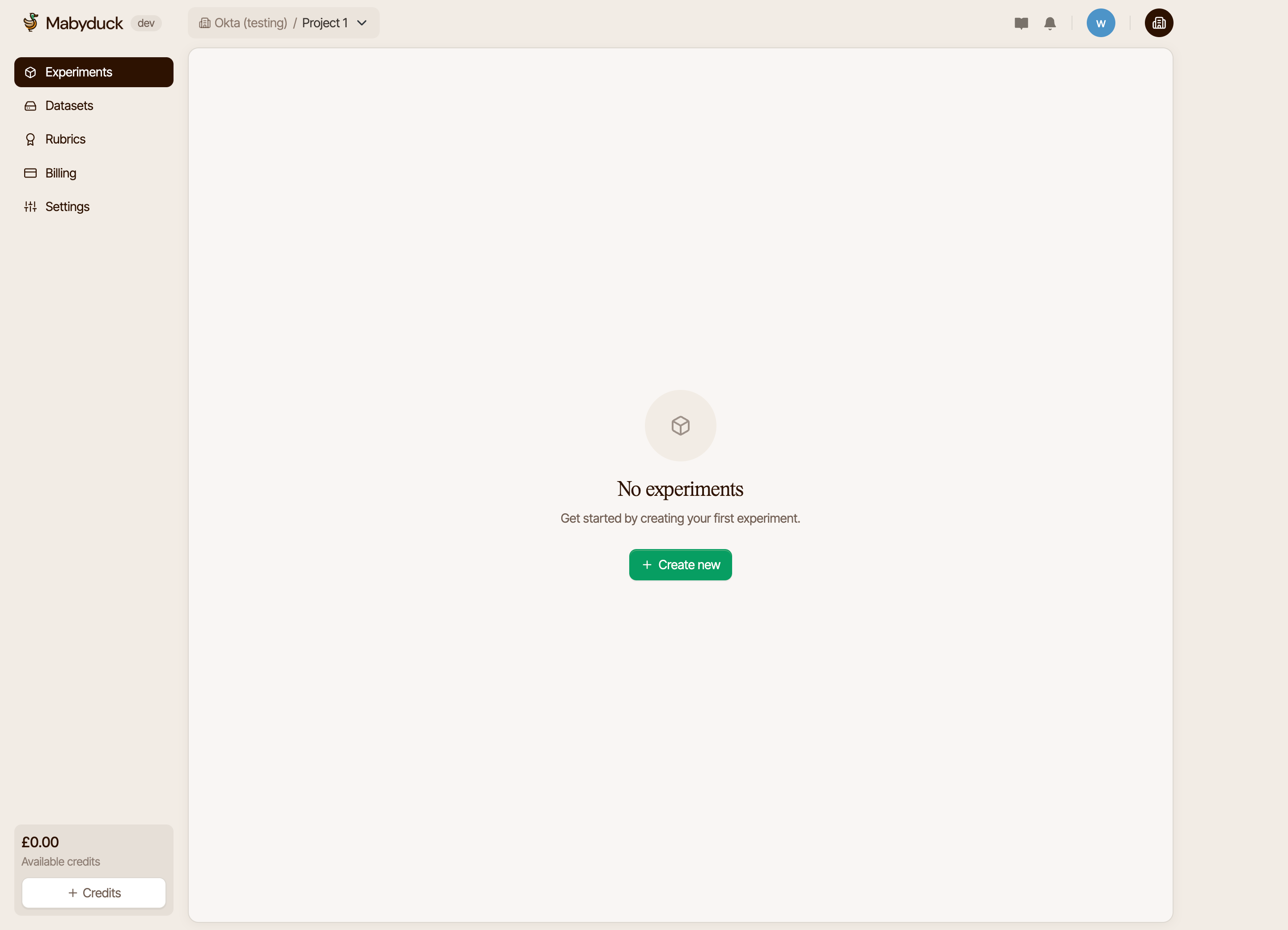
Click on
Organizationin the sidebar menu, select Organization, enter yournameand alogo, then click onSave.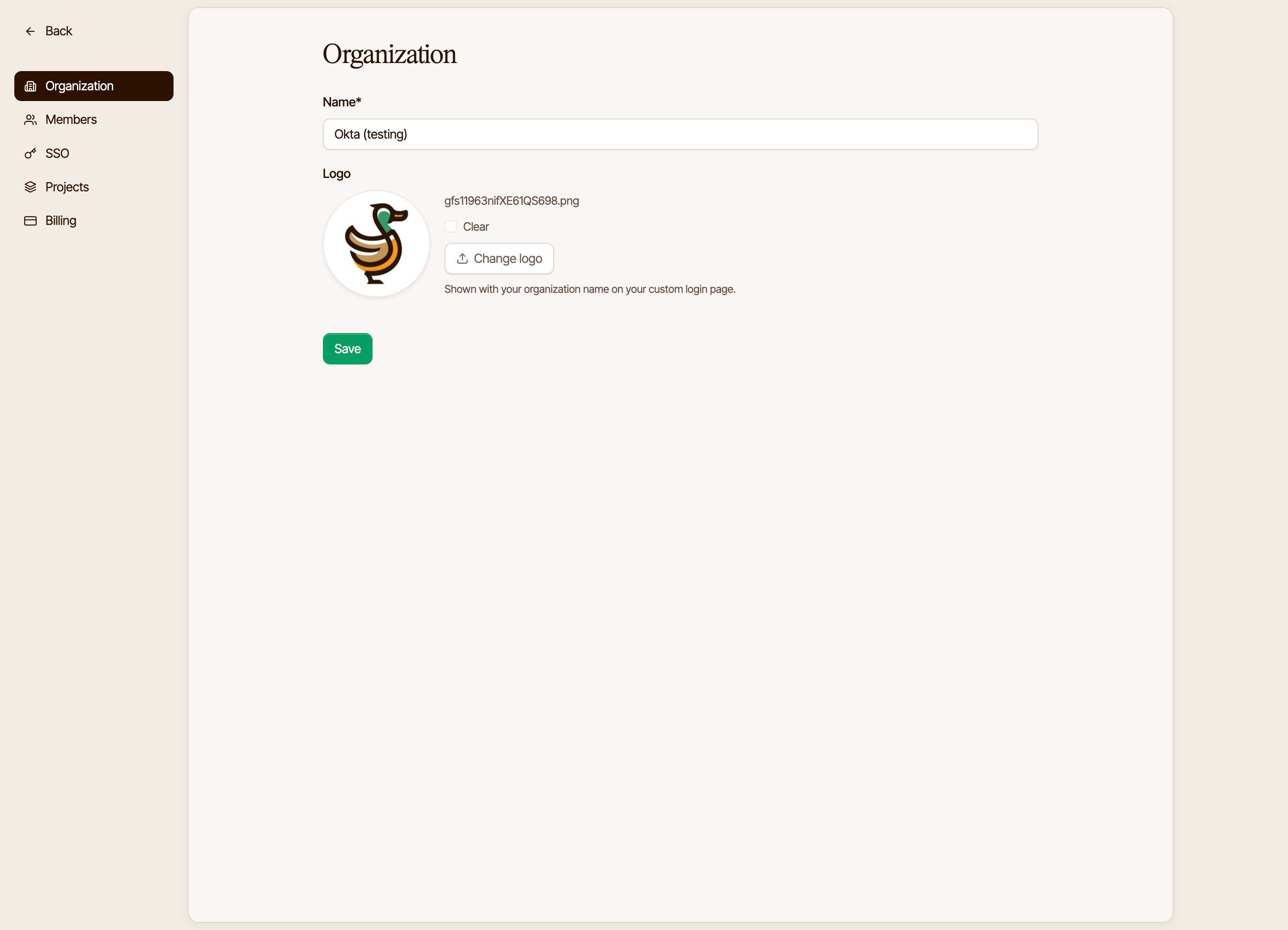
Click on
SSOin the left sidebar menu, selectenable SSO, enter your Oktaissuer URLandclient IDandclient secret, then click onSave.
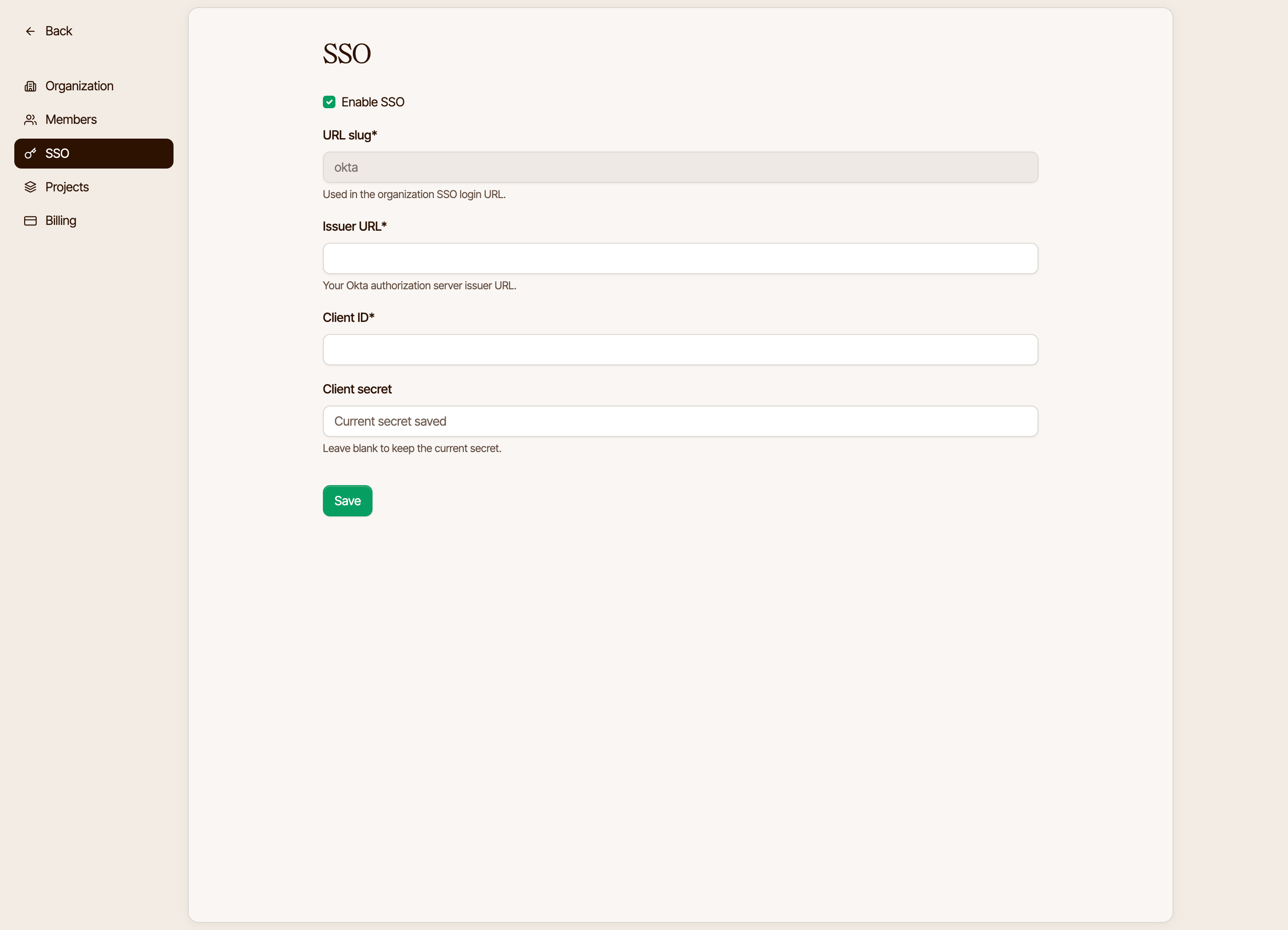
Okta OIN OIDC integrations use the Okta organization authorization server. Okta access tokens and ID tokens expire after one hour.
Mabyduck uses the Okta access token only during sign-in. It does not store or refresh the Okta access token after the login exchange.
After sign-in, Mabyduck maintains its own application session. Mabyduck application sessions expire after two weeks by default.
OIDC SSO integrations published in the OIN have these limitations:
- The integration must use the Okta organization authorization server.
- Refresh tokens are not supported.
- The
offline_accessscope is not available. - Custom scopes, such as
groups, are not supported.
Check that:
- the sign-in redirect URI matches exactly.
- the URI includes the trailing slash.
- only customer-facing production URLs are configured.
- the user is assigned to the Mabyduck app in Okta.
- the issuer URL in Mabyduck matches the Okta app.
- the client ID and client secret in Mabyduck match the Okta app.
This is expected for users in an Okta-enabled organization. Okta is the required sign-in method for those users.
Organizations without Okta SSO enabled can continue using normal Mabyduck sign-in methods.
Include:
- Okta issuer URL.
- Mabyduck organization slug.
- affected user email address.
- exact error message.
- whether the issue happens from the Okta tile, the Mabyduck login page, or both.