Markers
Markers highlight parts of audio or video that raters should pay attention to. These can be
defined in config.json files, with all stimuli within a folder
receiving the same markers.
Markers are currently supported by the ACR and pairwise experiments, for both audio and video.
Define markers
A marker can identify a point in time or a range. Use a number or an array for a short definition, or use an object when the marker needs a label, its own color, or a custom icon:
{
    "markers": [
        2,
        [4, 6],
        { "time": 6.5, "label": "Brief click" },
        { "start": 7, "end": 9, "label": "Artifact here" },
        {
            "start": 10,
            "end": 12,
            "label": "Background noise",
            "color": "color-auto",
            "icon": "🔊"
        }
    ]
}
| Form | Meaning |
|---|---|
2 | A point marker at 2 seconds. |
[4, 6] | A range from 4 to 6 seconds. |
{ "start": …, "end": … } | The same range, with optional label, color, and icon. |
{ "time": … } | The same point marker, with optional label, color, and icon. |
A point is drawn as a narrow mark on the timeline. For videos, the indicator remains visible for half a second as playback passes through it.
Markers are sepecified in seconds. [4.5, 6] and { "start": 4.5, "end": 6 } mark the same range.
Labels
Add a label to explain a marker. Labels require the object form:
{
    "markers": [
        {
            "start": 4,
            "end": 6.5,
            "label": "Listen for background noise"
        }
    ]
}
The label appears when a rater hovers over the colored marker. On video, it also appears beside the marker's icon in the top-left indicator while playback is inside the marked point or range. If a video marker does not have a label, the indicator shows only its icon.
Icons
Set icon on a marker object to customize the symbol shown in the active video indicator. A marker
without an icon uses the built-in warning icon, ⚠️. The option belongs on each marker object; a
top-level icon setting is not supported.
Colors
Colors make adjacent markers easier to distinguish. Any valid CSS color can be used, including a
hex value, a named color, or an rgb() or hsl() value.
Set color on an individual marker using the object form:
{
    "markers": [
        { "start": 2, "end": 4, "color": "#f5a524" },
        { "start": 5, "end": 7 },
        { "start": 8, "end": 10, "color": "color-auto" }
    ]
}
Markers without a color use the player's built-in marker color. Use "color-auto" on individual
markers to assign each one a color from the built-in palette.
The color applies to the band on an audio waveform or the segment in a video's marker rail. It does not change the top-left video indicator.
How markers appear
Audio
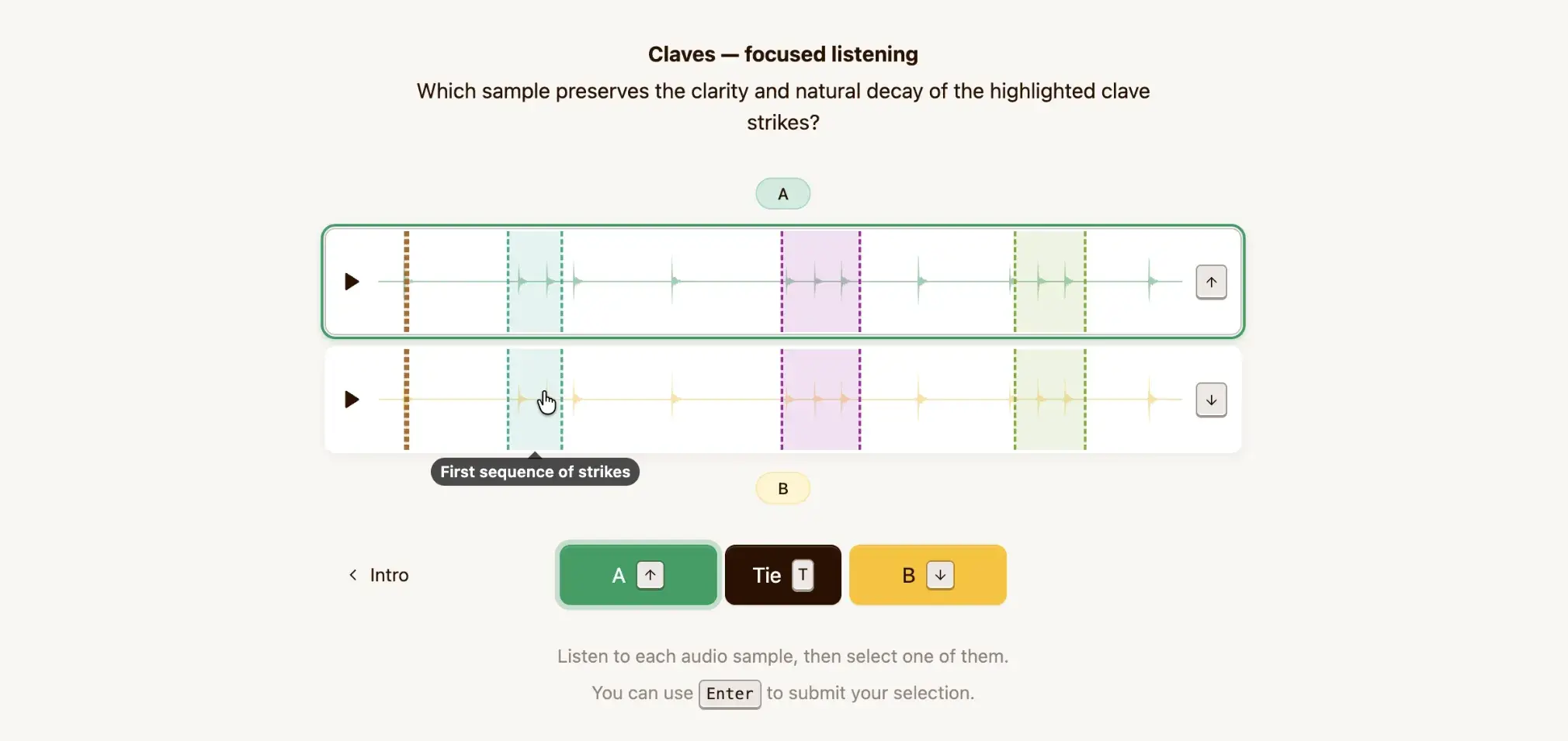
On an audio waveform, a range is drawn as a colored band spanning the waveform's height. A label is shown when the rater hovers over a labeled marker.
The top-left active marker indicator is not available on audio players, so audio players ignore marker icons. An icon does not change how a marker is drawn on the waveform.
Video
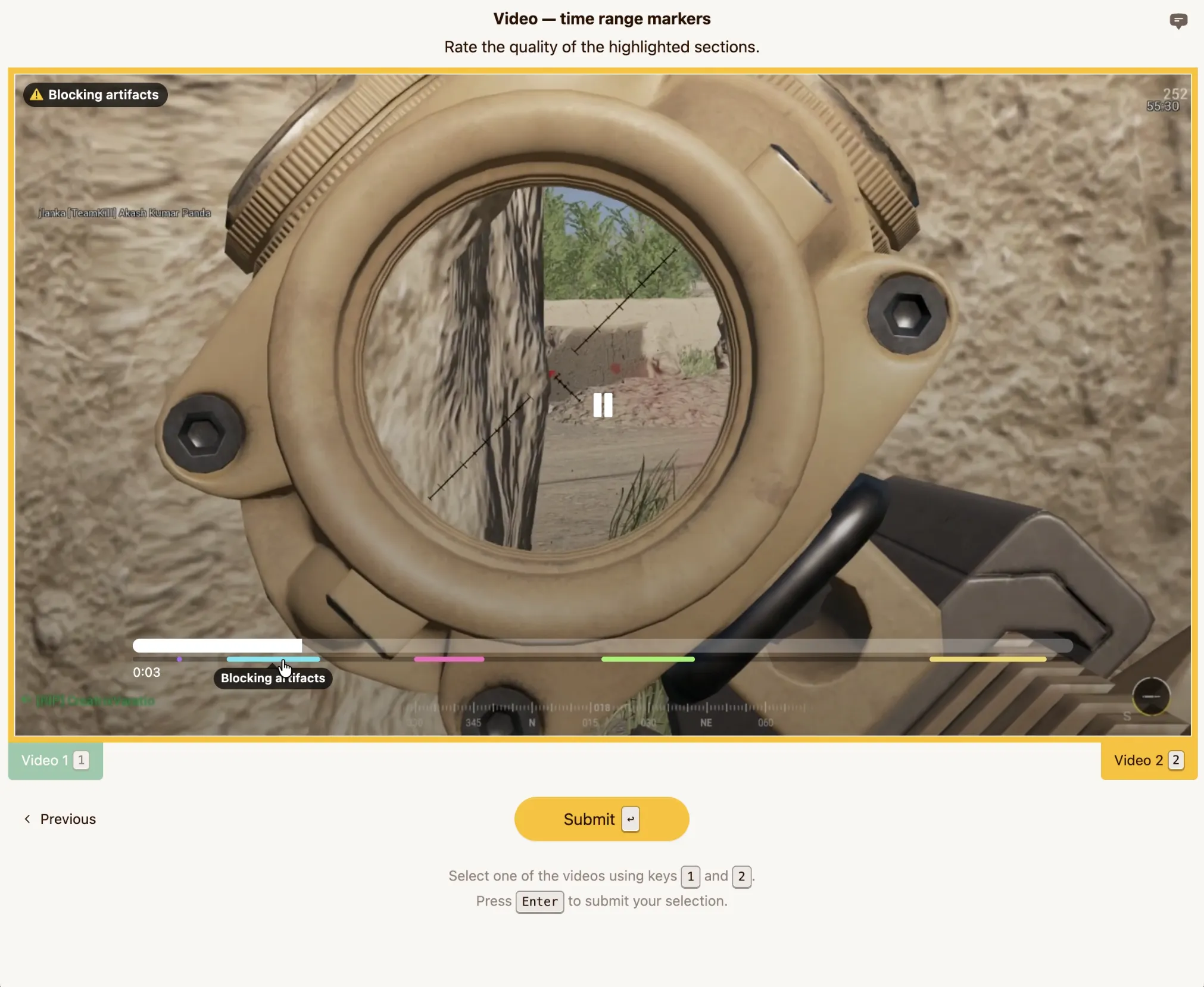
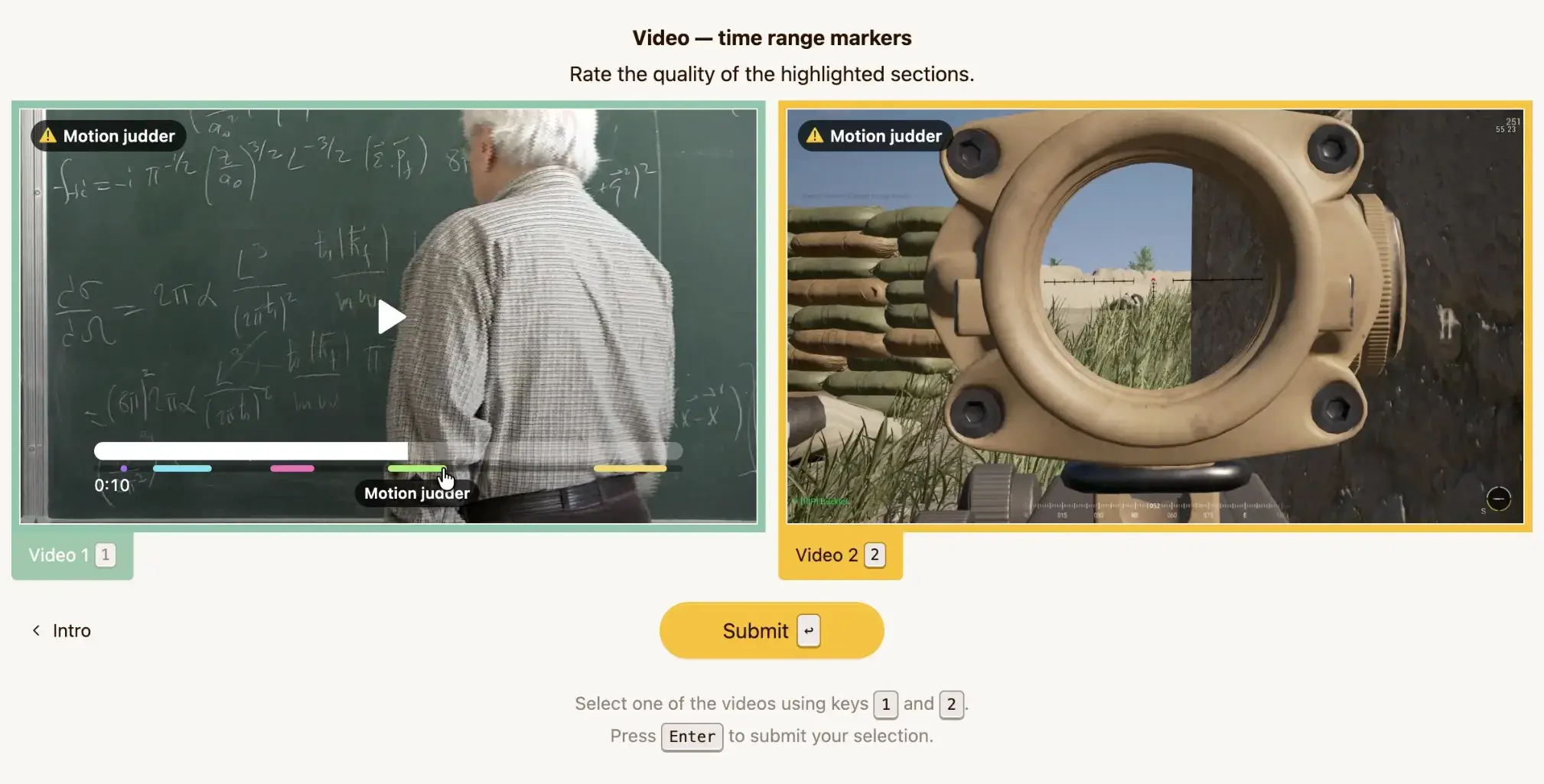
On video, markers are drawn in a colored rail just below the scrubber. The rail appears with the other video controls when the cursor is over the player. Hovering over a labeled segment shows its label.
While playback is inside a marker, an indicator appears in the top-left corner of the video. It
contains that marker's custom icon, or the built-in ⚠️ when no icon is configured, and, when
present, the marker's label. The indicator disappears when playback leaves the marker.
Markers are not available on videos rendered in fullscreen mode.