Surveys
Surveys ask raters questions and record their answers. They appear in three places:
- Survey experiments ask questions about each stimulus: survey audio, survey image, survey video and survey embedded.
- Pre- and post-surveys ask questions once per session, in any experiment type. A pre-survey is shown at the beginning of a session and a post-survey after it completes. Training sessions skip both.
- Saved surveys are reusable question sets kept in the app's Surveys section. Load one into a survey experiment's questions with Load survey, or choose one as an experiment's Pre-survey or Post-survey. Its questions and rules are copied into the experiment, so editing the saved survey later does not change existing experiments. To manage saved surveys through the API, see the surveys tutorial.
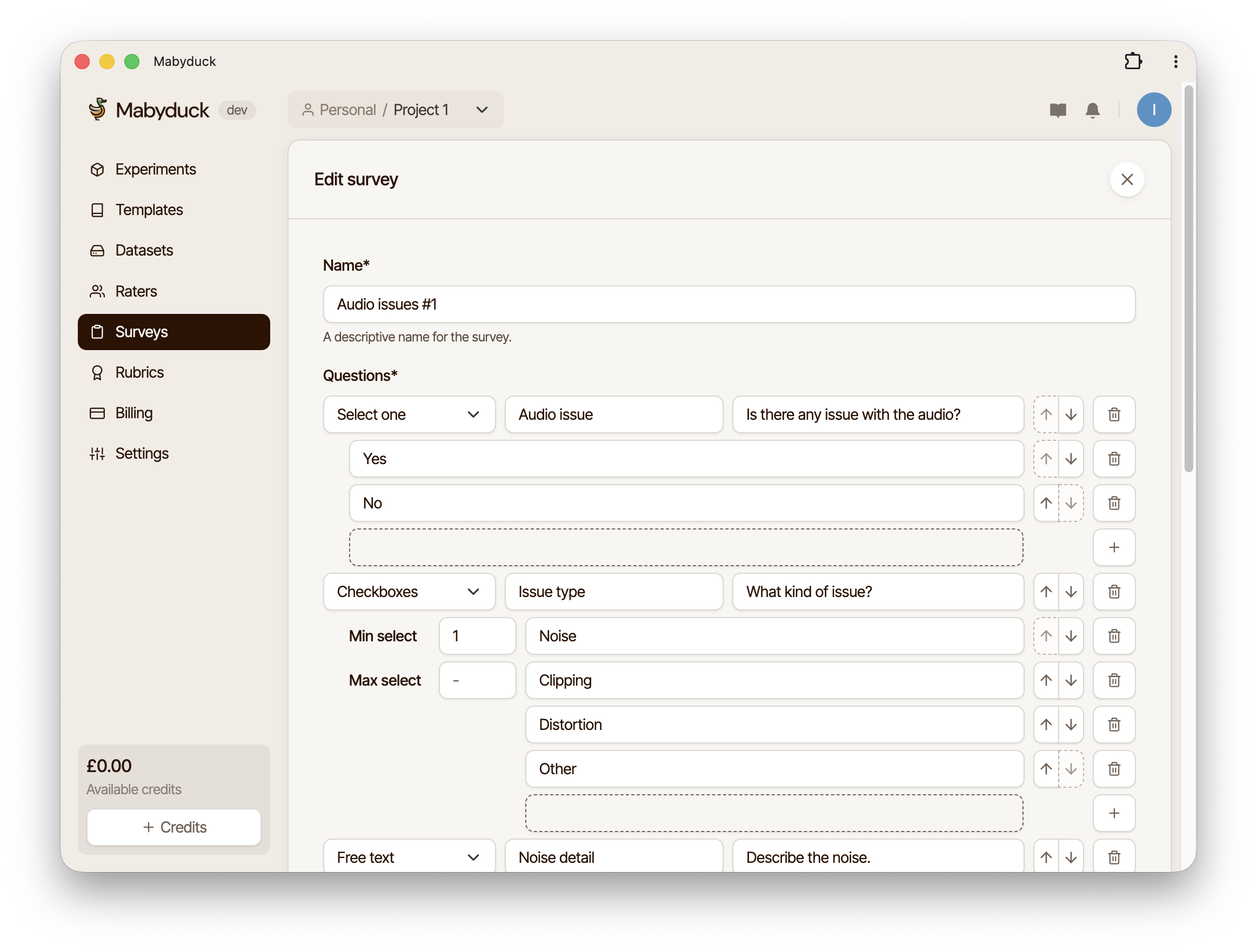
Survey format
A survey holds its questions and, optionally, its visibility rules:
{
    "questions": [
        {
            "kind": "textarea",
            "dimension": "Comments",
            "question": "Anything else?"
        }
    ]
}
rules is optional: leave it out when every question is always shown.
In an experiment's configuration, a survey experiment's survey goes under its type's key
(surveyAudio.survey, surveyImage.survey, surveyVideo.survey or surveyEmbed.survey), and
pre- and post-surveys go under preSurvey and postSurvey. A plain array of questions, the format
used before visibility rules, is still accepted everywhere and is read as a survey without rules.
Questions
A survey has up to 10 questions. Each question requires a kind (the question type), a question (the prompt), and a dimension (a short label used to identify the question in the results). Give every question its own dimension: visibility rules find questions by dimension.
The following question types are supported:
| Kind | Description |
|---|---|
textarea | An open-ended text response field. |
radio | A single-choice question where the rater selects one option. |
checkbox | A multiple-choice question where the rater selects one or more options. |
highlight | A transcript in which the rater highlights words by clicking or dragging. |
discrete_slider | A slider that snaps to one of the labelled categories. |
continuous_slider | A slider that can be placed anywhere between the labelled categories. |
For radio and checkbox questions, you must also provide a list of choices. For checkbox
questions, you can optionally set minSelect and maxSelect to constrain the number of
selections.
Slider questions instead require a list of categories (2 to 10 {label, score} objects giving
the labels shown along the slider and the score recorded at each one) and a responseType, which
must be discrete for discrete_slider and continuous for continuous_slider. A discrete slider
records the score of the category it snaps to; a continuous slider records a score interpolated
between the two neighbouring categories. Sliders do not take choices, minSelect or maxSelect.
Highlight questions
highlight questions are only available in survey experiments, not in pre- and post-surveys or
saved surveys. They take neither choices nor categories. The transcript the rater marks up is not
part of the survey itself: it comes from a transcript string in the group's
config.json. Groups whose transcript is missing or empty hide
the highlight question.
Raters highlight the transcript one word at a time, and words are separated by whitespace. Text in
Thai, Lao, Khmer, Burmese, Chinese or Japanese, which is written without spaces, can instead be
highlighted one character at a time. To choose the boundaries yourself, separate words with |.
The | is not shown to raters, and once a transcript contains one, no text is split into
characters:
{ "transcript": "今日は|いい|天気です。" }
Visibility rules
Rules show some questions only after certain answers, for example asking what kind of issue a rater
noticed only when they report one. Questions named in a rule's show list start hidden; other
questions are always visible.
{
    "questions": [
        {
            "kind": "radio",
            "dimension": "Audio issue",
            "question": "Is there any issue with the audio?",
            "choices": [{ "label": "Yes" }, { "label": "No" }]
        },
        {
            "kind": "checkbox",
            "dimension": "Issue type",
            "question": "What kind of issue?",
            "choices": [
                { "label": "Noise" },
                { "label": "Clipping" },
                { "label": "Distortion" },
                { "label": "Other" }
            ],
            "minSelect": 1
        },
        { "kind": "textarea", "dimension": "Noise detail", "question": "Describe the noise." },
        {
            "kind": "textarea",
            "dimension": "Other detail",
            "question": "What other issue did you notice?"
        }
    ],
    "rules": [
        {
            "when": [{ "dimension": "Audio issue", "choices": ["Yes"] }],
            "show": ["Issue type"]
        },
        {
            "when": [{ "dimension": "Issue type", "choices": ["Noise"] }],
            "show": ["Noise detail"]
        },
        {
            "when": [{ "dimension": "Issue type", "choices": ["Other"] }],
            "show": ["Other detail"]
        }
    ]
}
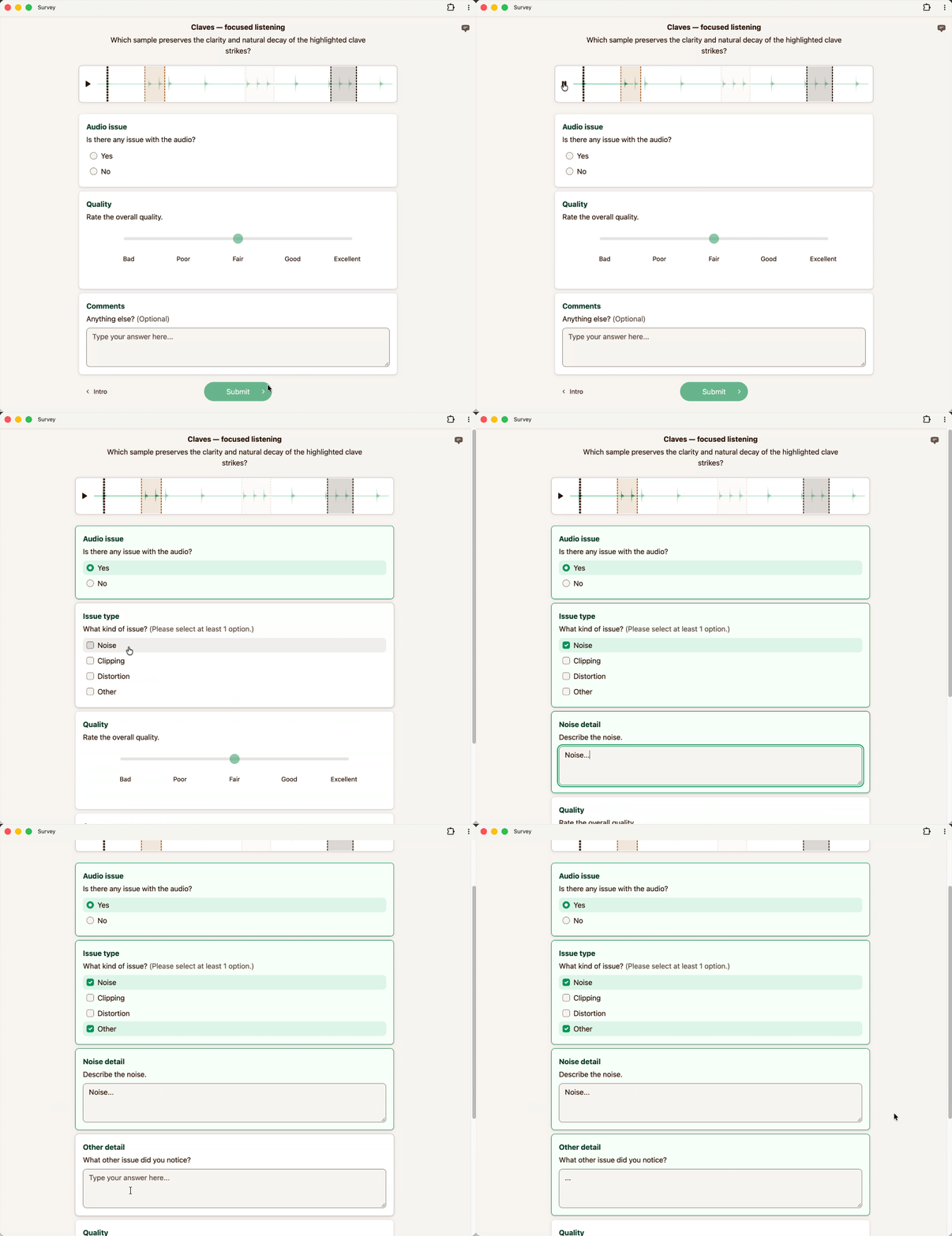
Each rule applies when all its when conditions match. A condition matches any selected
choice label in its choices list. If several rules show the same question, any matching rule
shows it. A hidden question's answers do not trigger other rules.
Conditions refer to radio or checkbox questions earlier in the configured question order. Use unique dimensions, existing question dimensions, and exact choice labels. Shuffling affects the display order only.
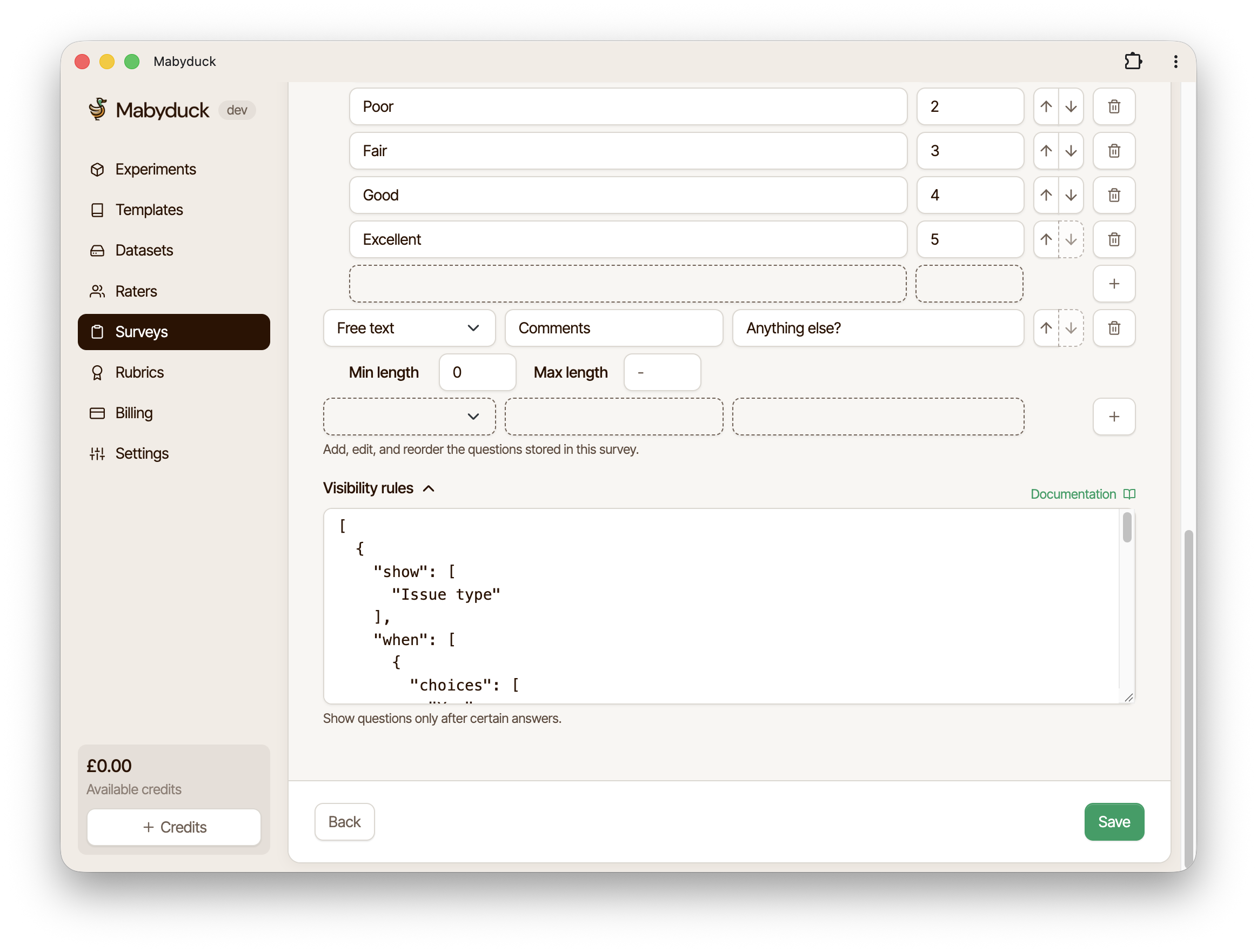
In the app, edit the rules as JSON in Visibility rules, below the question editor. Saved surveys
keep their rules, and loading or choosing one copies its rules along with its questions. Through the
API, send them as the survey's rules, which you can leave out when there are none.
Hidden questions keep their position in submitted answers with only kind and dimension;
omit their answer and response.
Shuffling questions
Survey experiments can show their questions in a random order. Shuffling per session keeps the
same order across every slate of a session, while shuffling per slate draws a new order for each
slate. When supplying a configuration via the API, set shuffleQuestions to none, session, or
slate.
Per-group surveys
Instead of (or in addition to) setting a single survey for the whole experiment, a survey
experiment can ask different questions per group. Place a
config.json next to the stimuli in each group folder:
├── source_1/
│   ├── config.json
│   └── sample.wav
├── source_2/
│   ├── config.json
│   └── sample.wav
├── ...
Each config.json holds the group's survey, in the same format:
{
    "survey": {
        "questions": [
            {
                "kind": "radio",
                "dimension": "Content type",
                "question": "What type of audio is this?",
                "choices": [{ "label": "Speech" }, { "label": "Music" }, { "label": "Other" }]
            }
        ]
    }
}
A group's survey takes precedence over the experiment's, and its rules come with it, so the
experiment's rules never apply to a group's own questions. You can put the survey at the root of
the config as shown above, or nest it under the experiment key (for example surveyAudio.survey),
which takes precedence over a root-level survey.