Image pre-screening
The image pre-screening experiment is designed to check whether raters can detect small visual differences before they take part in a larger image study.
It is used for short screening tasks that test color or contrast sensitivity and the ability to spot subtle image changes. The introduction recommends dim lighting, fullscreen browser mode, and a bright display to give raters a fair chance of seeing small differences.
How it works
Depending on the dataset and job setup, the experiment can behave in three different ways:
- A flip-between comparison between two images, optionally with a separate reference image.
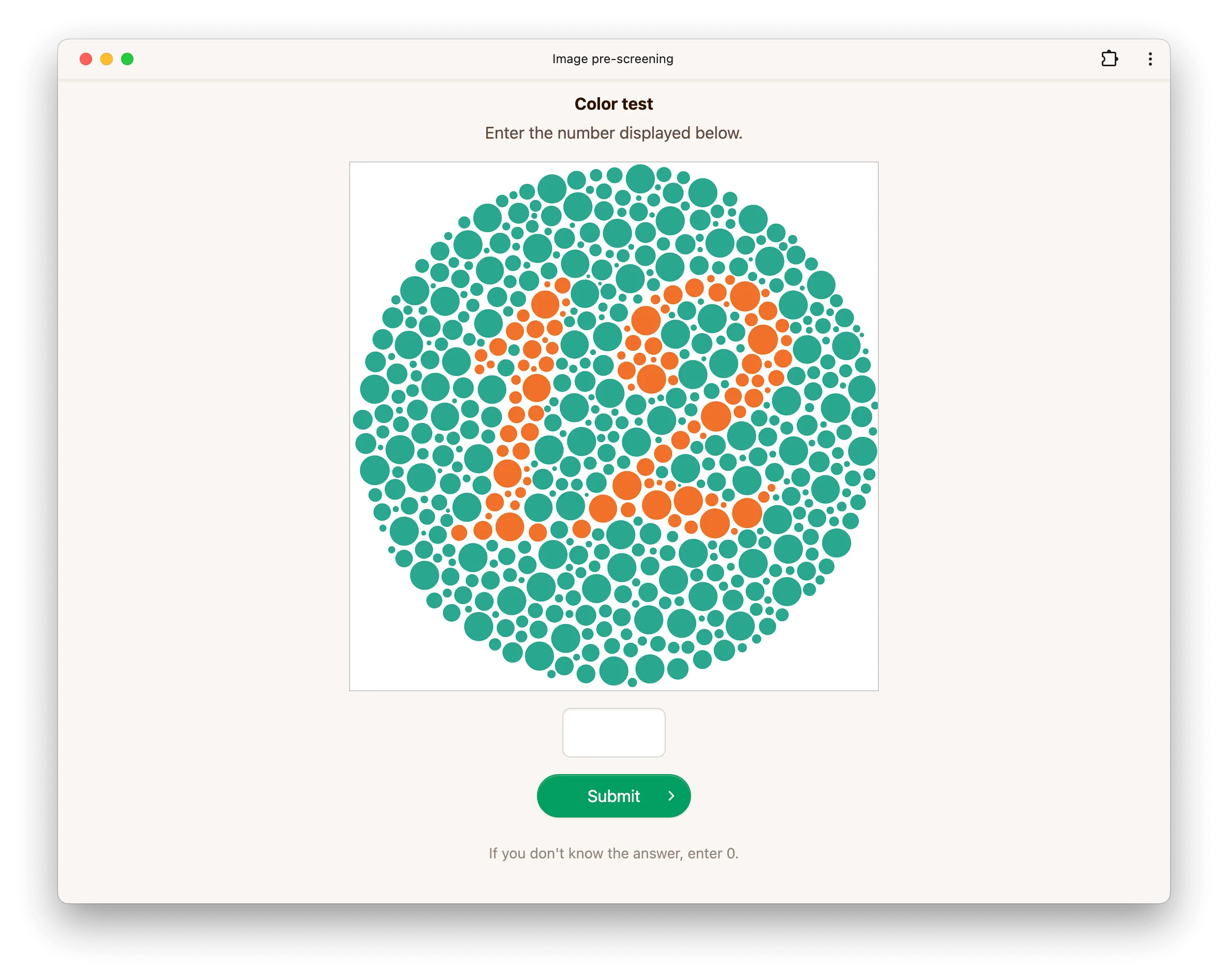
- A single-image question where the rater enters a number between
0and100. - A binary yes or no question for a two-image slate.
In flip-between mode, raters must view both images before they can submit. A short gray mask is shown between image flips to make direct flicker comparison more controlled.
After the last question, the outro page shows a per-question results table marking each answer correct or incorrect, with a link to review any individual question.
Dataset-driven behavior
This experiment relies more heavily on the dataset than most other experiment types.
- Per-item prompt text such as
titleandquestioncan be provided through a dataset config file. - Setting
preScreenImage.binaryAnswertotruein that config switches a two-image slate to a Yes or No answer flow. - For single-image number questions, the expected answer is taken from the stimulus filename. For
example,
37.pngexpects the answer37.
Dataset format
The canonical image pre-screening dataset uses one folder per question. Each folder contains a
config.json file and either one or two images.
Single-image number question
This pattern is used for tasks such as Ishihara plates, contrast counting, or color counting. The filename encodes the expected answer:
group_name/
  config.json
  12.png
Example config.json files from the canonical dataset:
{
    "title": "Color test",
    "question": "Enter the number displayed below."
}
{
    "title": "Contrast test",
    "question": "How many symbols do you see in the image below?",
    "theme": "dark"
}
Two-image reference comparison
This pattern is used when the rater should decide which image matches a visible reference:
group_name/
  config.json
  reference.png
  candidate.png
Example:
{
    "title": "Image comparison",
    "question": "Which image is identical to the reference image?"
}
Two-image binary yes/no question
This pattern is used when the rater should answer a yes or no question after flipping between two images:
group_name/
  config.json
  reference.jpg
  sdr.jpg
Example:
{
    "title": "Image comparison",
    "question": "Do these images look identical?",
    "description": "Consider their color intensity and brightness in particular.",
    "preScreenImage": {
        "binaryAnswer": true
    }
}
The canonical dataset also uses optional description text and theme: "dark" for some tasks,
which can help when the question depends on low-contrast or low-luminance details.
Options
This experiment currently has no dedicated experiment-level options in the app form. Most of the behavior comes from the dataset contents and the job configuration.
Job setup
For pre-screening jobs, the app form defaults to a lexicographic strategy. It also tries to include the dataset reference and anchors whenever those are available.
The public create-job API accepts strategy either as a strategy type string or as a full strategy
configuration object, so the same behavior can be reproduced through the API:
{
    "type": "lexicographic",
    "reference": "include_always",
    "anchors": "include_always",
    "min_conditions": 1,
    "max_conditions": 2
}
Image pre-screening slates hold one or two conditions, so a max_conditions above 2 is rejected.
Configuration via API
Below is a minimal experiment configuration accepted by the public API when creating an image pre-screening experiment.
config = {
    'preScreenImage': {},
}
When creating a draft job through the public API, you can use a payload such as:
{
    "rater_pool_id": "b1ou403",
    "num_sessions": 1,
    "num_comparisons": 2,
    "num_training": 0,
    "strategy": "lexicographic"
}